Showing posts with label Facebook Tips. Show all posts

How to unblock website from facebook block list

Sometimes our website get blocked by facebook team.. So that we cannot post our site link on facebook :(
It shows an error message like below

So now step by step I will show you How to unblock website from facebook block list..Then you can able to post website link again

Step 1:
At first you need to open an “Ad manager account” … If you don’t know how to open an ad manager account on facebook see this post : How to create an Ad Manager account on facebook

Step 2:
Then then you need to go to ~ https://www.facebook.com/business/resources
then select Contact us via email option from below..
Or you can directly get the option by following this link ~ https://www.facebook.com/business/contact-us/
Now you can contact to facebook by email by using your ad manager account.. Which you created in step 1.
Step 3:
You will get many options.. from the list you need to select “Creating – Editing my ads”

Step 4:
Now you will get some options.. fill them carefully ..
=>Select your ad manager account
=>Give your name
=>Give your email
=>Give your mobile number
=>Give your business name


 =>And at the last add url option give the link when you post your link and facebook gives you block warning..At the last you will see a link “Let Us know” copy and paste the link at the add url box.


Step 6:
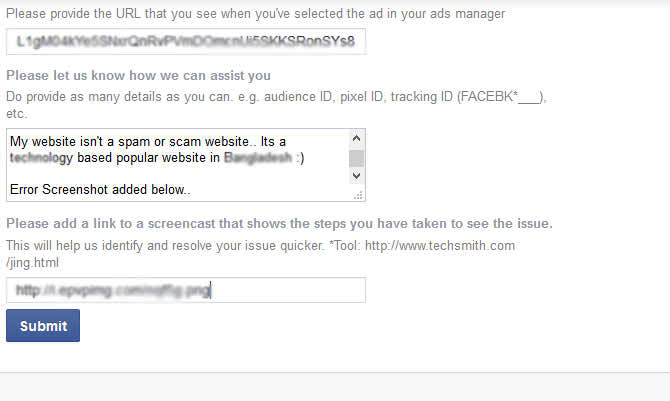
At the “Please let us know how can assist you” box.. copy & paste this message including your own website
My website link is http://*****.com(your site link)
When I try to publish any post with this website it shows an error.. So I can’t publish any post which has the website link :(
So I can’t advertise with facebook..
My website isn’t a spam or scam website.. Its a ***[your site base ]based popular website in ****[your country] :)
Error Screenshot added below..


Step 7:
Now take the screenshot of the error[Which contains you can’t post the link because it has a blocked link]  that you get when you try to post the link… Upload it any image hosting.. And give the direct link of the screenshot in the last box..
Then press “submit”

If you do all the step carefully you will get an instant automatic email in the email which you gave at the step 4.. If you don’t get any instant email there is a problem on your process.. You need to do the same process carefully again :)

Then wait up to 24 hours.. An expert from facebook team will contact you soon through your email…And if they need further information they will ask you to provide it..And then after checking your website if they found it is now harmful they will unblock your website ..

Then you can post your site link on facebook and advertise your website with facebook 
Stay with trickbd.co for more cool :)

8 free Facebook Marketing Tools

1. Agora Pulse (link)

This Facebook (and Twitter) dashboard shows you an overview of all activity on your page and lets you schedule posts and begin campaigns right from the dashboard. What kind of campaigns, you wonder? Just about anything you could ever need. Here’s a list:


  • Photo contest
  • Coupon
  • Fan Vote
  • Instant win
  • Persoanlity test
  • Quiz
  • Sweepstakes
Campaign information can be added as a page section, and you can promote your campaign via a post to your page. The free plan has a cap on participants, which you can lift by upgrading to a paid plan.
Price: Free trial, then plans starting at $29 per month
Alternative Facebook app and campaign tools:

2. EdgeRank Checker (link)

Owned by Social Bakers, one of our favorite social media research sites, EdgeRank Checker offers a complete overview and analysis of a Facebook page with some really neat charts and graphs for their free score and some extra advanced features—like page recommendations and key metrics—for their paid plans.
Here’s a view of the heatmap for when our Buffer fans are online.


Price: Free score, free for two weeks, then

3. ShortStack (link)

A comprehensive Facebook campaign tool, ShortStack works to make it easy to add any sort of campaign—a staggering number of options, really—to your page. ShortStack offers templates to start from, or you can build a campaign from scratch, using an intuitive visual editor.


You can push a campaign live in minutes via ShortStack. For advanced options with your campaign (and to remove the ShortStack branding), you’ll need to upgrade to a paid plan.
Price: Free
Alternative Facebook contest tools:

4. Facebook Page Barometer (link)

Want to know the health of your Facebook page? Want to see how it stacks up to pages of a similar size and scale? This tool from Agora Pulse delivers stats on reach, engagement, feedback, virality, and more, and it compares your results to results of pages with a similar amount of fans. The benchmark breakdowns (which you can view no matter your page size) are as follows:
  • Under 1,000
  • Between 1,000 and 10,000
  • Between 10,000 and 50,000
  • Between 50,000 and 100,000
  • More than 100,000


Price: Free

5. AgoraPulse Contest (link)

Another neat tool from AgoraPulse, this simple contest app lets you connect your Facebook pages and try out three different types of contest to reward those who engage with you.
Sweepstakes – Randomly pick winners among the fans who have liked or commented on a post
Quiz – Ask fans a question, pick a winner among those who answered correctly
Photo contest – Ask fans to comment with a photo, pick a winner among those with the most likes


Bonus cool thing: You can store the winners for reference later, in case you don’t want the same person winning multiple times.
Price: Free

6. Conversation Score (link)

Discover any page’s influence, engagement, and performance simply by entering the page URL into the Conversation Score tool. No Facebook authorization required.


Price: Free

7. Likealyzer (link)

A tool similar to Conversation Score, Likealyzer reviews Facebook pages and comes up with an overall score and recommendations on where to improve. All you need to do is enter a Facebook page URL (no Facebook authorization needed), and Likealyzer will return blocks of easy-to-read data and advice on the health of your page.


Price: Free

8. FanPage Karma (link)

Another in the line of Facebook analytics tools, FanPage Karma shows an overview and score for your page. Best of all, you can get super detailed if you only need analysis on one page. Fanpage Karma lets you unlock a full report once, and the full report details the page content, timing, influencers, fan engagement, tagging, benchmarking, and more.

 Price: Free

PTC Site: be alert, Everything is your decision


Before knowing the threat in those PTC websites, let’s know what are PTC websites? And how do they earn money? ‘Paid-To-Click’ as the word itself indicates the purpose of the website; it is a platform where registered users are paid for clicking certain number of advertisements. You will be shown some 10 to 20 or even more ads daily on your dashboard and all you have to do is ‘clicking them.’ Advertisement opens in a new window and waiting for 20 to 30 seconds increases your balance to $0.001, 0.05 or 0.10 depending on the ad and also the website.

How do they earn money? And how they pay you

Every product or a service needs customers and the only method to get them is through advertisements. These PTC sites made deals with those advertisers and ensure them certain number of clicks for their ads. For example, consider I had a company ‘itshikkha’ and a PTC website makes a deal with me for $1000 and ensures ten thousand clicks on my ads. So, that particular website earns $0.10 when a user clicks an advertisement and pays just 0.01 dollar to you and the rest is profit. Interesting! So, I can go on clicking ads daily and make thousands of dollars! If this is what you thought, you are wrong. You get just 10 to 20 ads on to your dashboard a day and that takes you months to get first payment i.e. $5.

I joined one such website and made $0.8 by working for entire month with one referral. What is referral? You can also suggest your friends to join such websites as referrals for which you’ll get paid. Don’t think that you can get 10 to 15 dollars for a referral. They just pay you a 0.01 or a little more for a referral. So, even you should have more than 100 referrals to earn just $10. Practically, it is not that easy to get referrals and also 10 dollars cannot feed you a month. Also, you can upgrade your membership to receive more ads thereby you can earn bonus income. But still that cannot make you a $100 per month.

So, it’s all just a new way of cheating us and I request you not to fall prey to such immoral websites. Even the website administrators knew that no user can make a $1000 check in a year, but they still fool us to get benefited from us. My intention is not to say that they are completely trash, they do pay $100 when you work for $1000. Here is a point in Terms of one such website “At the moment no withdrawals are being processed. Your balances can be redeemed for advertising, referrals or upgrades.” What does that indicate and what if you join that website and blindly work for a month? This is not restricted to a single website, 99 per cent of PTC websites try to cheat its users. So, dear readers your common sense knows what is genuine and what is not. ‘Try to make money but not easy money.
if you Really interested To know about the online income you can visit the following link

How to Get Free Facebook Followers

1. Follow our Facebook List
2. Enter URL of your Facebook Account / Page in Input Field
3. Press Get Followers Button
4. Wait for 24 hours For Facebook to update your followers.
Your followers will grow every day, change your privacy settings so that everyone will be able to see your followers, also make sure that you have turned on follow button for your Facebook account. Embed this tool on your web site using HTML code given below :

How To Send Messages To All Facebook Friends At Once

Message All Facebook Friends at one allows you to send messages to all friends at once without getting blocked. Main features of message all friends at once tool Send messages ail without getting blocked Send stickers in messages Message All Friends At Once Enter a custom delay time between messages Extremely simple to use. To learn how to use message all friends at once, please watch the video tutorial given below.

How To Invite Your Friends To Like Your Facebook Page

When you have thousands of friends it becomes very difficult to invite them manually. Facebook social toolkit simplifies the process of inviting your friends to like your page. Invite your friends to like your page option is a free tool and free from all the limitations, you can use this tool to invite your friends without wasting your time to invite every friend manually. What Is Facebook Page Invites Tool? Facebook page invites tool simplifies the process of inviting your friends to like your page. Facebook page invites tool allows you to invite multiple friends to like a Facebook page. Facebook page invites tool is Developed by Facebook Social toolkit developers for simplifying the process of inviting hundreds or thousand of Facebook friends. Using Facebook social toolkit page invites tool, you can invite thousands of Facebook friends in less time. Why To Use Facebook Page Invites Tool? Many people have thousand of Facebook friends and it becomes very difficult to invite every friend one by one. Facebook page invites tool invites all your friends in a single click and saves your valuable time. By running Facebook page invites tool for few seconds you can invite all your friends. Facebook page invites tool is simple to use. It can invite unlimited number of friends in very short time. Facebook page invites tool is ultra fast and ideal way to invite your friends to like your page. Facebook page invites tool allows you to set a custom delay time in between every invitation request. It means you can set a huge delay time for avoiding a Facebook ban. Feature to set a custom delay time makes Facebook Page invites tool different than other invitation tools. By using a delay time of 60-80 seconds you will never get banned by Facebook from inviting your friends to like your page and you can continue to invite more friends to like as many pages you want. How To Use Facebook Page Invites Tool Facebook page invites tool is easy to use. Download and install Facebook social toolkit page invites tool from chrome web store. Log in into your Facebook account and Navigate to www.Facebook.com and start Facebook Social Toolkit by clicking on Facebook social toolkit icon Click on Invite Your Friends to like your page button Navigate to the Facebook page where you want to invite your friends Copy the URL of the Facebook Page and paste it into Facebook ID extraction tool Click on Extract ID button Copy the Extract Facebook page ID into Facebook Social Toolkit Enter a suitable delay time After entering everything, click on invite your friends button Facebook social toolkit Page invites tool will now invite all your friends to like the page Watch the video tutorial to learn how to use Facebook page invites tool.

How To Delete All Comments From Facebook Post

Delete All Comments At Once Tools allows you to remove all comments form any post. This tool works on almost all types of post.
List of comments that will be deleted after pressing the delete all comments at once button:
  1. All visible comments posted by you
  2. All comments posted on your post

How To Use Delete All Comments At Once

Make sure you already have installed Facebook social toolkit chrome extension from chrome web store, after that log in into your Facebook account, then follow the simple steps given below:
  1. Open the post where you want to run the tool and delete all comments.
  2. Make sure the comments that you want to delete are visible to you, comments can be made visible by clicking on “View more comments” link.
  3. After that click on “Delete All Comments At Once” button to delete all comments, comments will be deleted within few seconds.
for more information, please watch the video tutorial given below:

How To Claim As Facebook Group Admin Tool

Some facebook groups have no admins. Some Facebook Groups Have Deactivated admin accounts. Claim as group admin tool searches for groups with no admin and allows you to become admin of these groups. Facebook Claim as Group Admin makes you an admin of the Facebook groups that have no admin or Facebook groups with deactivated Facebook admin accounts. Your browser may freeze during the process. Claim As Group admin Tool Works if you are a member of many facebook groups. You can’t become admin of groups that already have an admin Who can use claim as group admin tool? To avoid incorrect use of this tool, claim as group admin tool is reserved for premium members. You can also become a premium user by using the link given below. Buy premium version of facebook social toolkit

How To Like All Facebook Posts And Comments

Like All Facebook Posts And Comments” tool allows you to like all posts and comments visible on news feed or profile page in single click. Why to use “Like All Facebook Posts And Comments” tool If there are multiple posts on your news feed and you wish to like all of them then this tool can be used to save your time.How to use Like All Facebook Posts And Comments tool Navigate to your Facebook news feed or profile page Start Facebook Social Toolkit chrome extension by clicking on the extension icon Select click all like buttons from free tools section Click on submit button to like all Facebook posts and comments visible on your screen in single click.

How To Reject All Facebook Friend Requests At Once

We already made Accept All Friend Request At once tool for accepting all pending friend requests.
Reject All Friend Requests At Once tools allows you to click on all “Not Now” available on the page https://www.facebook.com/friends/requests/, thus it allows you to reject all pending friend requests at once.

Why To Use Reject All Friend Requests At Once Tool

It allows you to get rid of pending friend requests without clicking on “Ignore” buttons again and again. It helps you by saving your valuable time.

How To Use Reject All Friend Requests At Once Tool

Make sure that you already have downloaded and installed Facebook Social Toolkit chrome extension on your chrome web browser , also make sure that you are logged into your Facebook Account. After that proceed as given below:
  1. visit: https://www.facebook.com/friends/requests/
  2. Click on Facebook Social Toolkit extension icon to start Facebook Social Toolkit
  3. Select Reject All Friend Requests At Once tool from removal tools section
  4. Click on the blue button “Reject All Friend Requests At Once” to reject all friend requests.
  5. Repeat the same process to reject friend requests.
for more information, please watch the video tutorial about rejecting all friend requests at once:

How To Post On All Pages Liked By Facebook User

What is “Post On Liked Pages By Facebook User” Some Facebook pages allow users to post on their feed. Posts shared on feed of Facebook pages can sometimes help to share your message to wide number of Facebook users. “Post On Liked Pages By Facebook User” tool automates the process of sharing posts on all liked pages. How To Use Post On Liked Pages Tool Make sure you have installed Facebook social toolkit chrome extension on chrome web browser and logged into your Facebook account, then follow simple steps given below: 1. Click on Facebook Social Toolkit Icon to Start Facebook Social Toolkit. 2. Select post on liked pages tool from premium tools section 3. Enter your message and link in the input fields. 4. Enter a suitable delay time in between posting requests. 5. Click on submit button to share your message on multiple pages. Common errors: 1. Invalid delay time: User need to enter a positive number as delay time to fix this error. 2. Invalid message: Make sure message field is not blank, if it is blank then enter a new message in input field to fix this error. To avoid wrong use of this tool, This tool is limited only for premium users. To use this tool,

How To Hide Seen In Facebook Messages

Facebook Social Toolkit (version 2.3.1) and above allow you to disable seen for Facebook messages.
 Using this background tool, you can block “seen” feature for Facebook messages so that no one will be able to know whether you have read the message or not.
Facebook hide seen is a free feature of Facebook Social Toolkit Chrome Extension

Why to disable hide seen For Facebook messages

  • It helps you to avoid replying to messages from unknown people, allowing you to concentrate on your work.
  • You will be able to read all messages without letting the sender know that you have read the message
  • You will be able to know whether receiver have read your message, but your receiver will not be able to know whether you have read message sent by receiver.

How to activate hide seen for Facebook messages

  • First you need to install Facebook Social Toolkit from chrome web store.
  • After installing Facebook Social Toolkit, simply click on extension icon, this will open a new popup window.
  • Now click on Background tab of Facebook Social Toolkit , here you will see a checkbox for disabling last seen for Facebook Messages
  • Kindly check the checkbox to disable Hide Seen for Facebook Messages
  • If you want to disable this feature then kindly uncheck this checkbox

If there is any problem in using this feature then let us know in comments.

How To Add All Facebook Friends Into Facebook Group

When you have thousands of friends it becomes very difficult to manually add them into your Facebook group. Facebook social toolkit simplifies the process of inviting your friends to join your group. Invite your friends to join your page option is a free tool available in Facebook Social Toolkit and free from all the limitations, you can use this tool to invite your friends to join your group without wasting your time to invite every friend manually.
Facebook group invites tool will help you in adding your friends into Facebook groups.

What Is Facebook Group Invites Tool

Add All Facebook Friends Into Facebook Group  tool is created by Facebook Social toolkit developers and it allows you to add your friends into Facebook group without wasting your time.

Why To Use Facebook group invites tool

Facebook group invites tool adds your friends into Facebook Group and helps you in increasing the number of group members.

How to use Group Invites tool

Group invites tool is a free tool. Group invites tool is simple to use, You can follow the simple steps given below to add your friends into groups
  1.  Download and install Facebook group invites tool from chrome web store
  2. Log in into your Facebook account
  3. Click on Facebook social toolkit icon to start Facebook Social Toolkit
  4. Click on Invite Your Friends To Join Your groups button
  5. Enter group ID of the Facebook group where you want to add your friends. You can use Facebook
  6. ID extraction tool for extracting group ID
  7. Enter a delay time of 10-20 seconds
  8. After entering everything, click on invite button
  9. After following above steps, Facebook group invites tool will add your friends into Facebook group. To learn more about using Facebook Social Toolkit group invites tool

Step 1:  Log In Into Your Facebook Account And Start Facebook Social Toolkit

First thing you need to do is to Log in into your Facebook account and start Facebook social toolkit. After starting Facebook social toolkit, you will see a screen similar to the screenshot given below.

Step 2:  Start invite your friends to join your group Tool

After you have successfully started Facebook Social Toolkit, Click on invite your friends to join your group button. After clicking on invite your friends to join your group button, you will see a screen similar to the screenshot given below:

Step 3: Enter Group Id

Now, you need to enter the Group Id of your Facebook group. Many people don’t know how to get Group Id so we recommend them to use Facebook Group Id extraction tool created for Extracting Group Id.

Step 4: Enter Delay Time

Delay time is used for avoiding Facebook ban, Enter a suitable delay time to avoid Facebook penalty. Facebook have a system for detecting artificial HTTP requests, We are blocked from sending HTTP requests when we send multiple HTTP requests of the same type. For avoiding this we allow our users to set custom delay time depending on their needs. Delay time is the delay in between two invitations for avoiding Facebook ban It is recommended to use 10 second delay between every invitation request.

Step 5: Press Invite Your Friends Button

After entering group Id and delay time,press the Invite your friends button to start inviting your friends.
When Facebook group invite tool has finished inviting your friends, you will see a success message as shown in the screenshot given below:

Common Errors

Member Can’t Be Added Into The Group
There could be many reasons behind this error, they are listed below
1. You Have Entered Incorrect Group ID
One of the possible reason behind this error is invalid group ID, if you have entered invalid group id then you will see this error. We recommend you to use Facebook ID extractor for resolving all the errors.
2. Your Friend Is Already A Group Member
Facebook group member increaser increases the number of group members you have in your group, for increasing group members it adds all your friends into group. It means that the value of friend id is continuously changing and if your friend is already a member of your group then adding it again in the group returns an error.
3. Invalid Delay Time
You will see this message when you enter invalid or negative delay time. It is recommended to use 10 second delay time.

How To Use Multiple Facebook Accounts At Once


Facebook account manager is the simplest way to switch in between multiple Facebook accounts in single click. This simple video explains, how easy it is to use multiple Facebook Accounts using Facebook Account Manager Chrome Extension.

Video tutorial about account manager chrome extension :


You can download Facebook account manager from chrome web store.

To know how to use Facebook account manager, visit fbmanager.getmyscript.com
Facebook account manager allows you to save Facebook account sessions so you can use multiple Facebook accounts.

How to Create a Facebook Business Page in 5 Simple Steps


    1. HOW TO Create a Facebook Business Page in 5 Simple Steps
    2. 8 million local business pages have been created on Facebook. SOURCE: FACEBOOK
    3. 8 million local business pages have been created on Facebook. ... just between June 2012 & May 2013. SOURCE: FACEBOOK
    4. In total there are over 50 million business pages on Facebook. SOURCE: FACEBOOK
    5. WHY?
    6. Because there are 829 million people actively using Facebook every day. SOURCE: FACEBOOK Click to tweet
    7. These active users are from all around the world. 206 MILLION 228 152 MILLION MILLION SOURCE: FACEBOOK
    8. So, businesses use Facebook because their customers are already there.
    9. And these customers are not just teenagers. SOURCE: FACEBOOK 5.4% OF USERS ARE 13-17 YEARS-OLD 23% OF USERS ARE 18-34 YEARS-OLD. 31% OF USERS ARE 35-54 YEARS-OLD. 16% OF USERS ARE 55+ YEARS-OLD.
    10. Fortunately, creating your own Business Page takes just 5 steps.
    11. Choose a classification.
    12. Click anywhere on this slide to navigate to Facebook. facebook.com/ pages/create/ (MAKE SURE YOU’RE LOGGED IN).
    13. Now, choose 1 of the 6 classifications.
    14. Now, choose 1 of the 6 classifications. Ea ch classification will prov ide more relevant information fields for yo u r desired Page.
    15. Local business highlights local relevancy. • About • Address • Hours • Price Range • Parking • Contact
    16. Company creates industry relevancy. • Founded • Address • Mission • Products • Awards
    17. Brand focuses on a product, not company. • Founded • About • Product • Awards
    18. Public figure focuses on the individual. • Address • Affiliation • Birthday • Biography • Interests • Gender
    19. Entertainment puts a spotlight on releases. • Release Date • About
    20. Cause prioritizes community supporters. • Cause Type • Description • Cause Groups
    21. For this tutorial, we’ll select company.
    22. Each option will ask for an official name.
    23. Each option will ask for an official name. Be careful with name selection – Facebook allows you to change your URL once (and it’s a difficult process).
    24. Complete Basic Information
    25. Next, we’ll complete the four basic sections Facebook walks us through.
    26. This “about” section appears prominently on your Page. Make sure it clearly describes your business.
    27. Your Facebook URL represents your unique domain. For example, facebook.com/ getsidekick
    28. Next, upload a square, 180 x 180 pixels, photo. Ideally, this should be your company logo.
    29. Adding your Page to your “Favorites” bookmarks it on your personal News Feed.
    30. Creating an advertisement at this stage is risky – there’s nothing on your Page yet for people to see!
    31. Understand the Admin Panel
    32. The basic skeleton of your Business Page is now live.
    33. Avoid “liking” your Page right away. We need to first populate it with content.
    34. On the right side, you’ll find important metrics you can regularly monitor.
    35. Let’s jump to the “Settings” tab in the top left navigation.
    36. Under “Page Info,” you can add additional details about your business.
    37. Under “Notifications” you can set frequencies for Page alerts.
    38. Under “Page Roles” select which colleagues can make changes to the Page.
    39. Populate Page With Content
    40. Upload a cover photo to further brand your page. It should be 851 x 315 pixels.
    41. Create your first post! This can be a link, image, or plain text status update.
    42. Create your first post! This can be a link, image, or plain text status update. Click here to u ncover 8 best pra ctices for crafting perfect Fa cebook posts.
    43. Now that there’s content on our Page, start strategically inviting users to Like it.
    44. First, invite colleagues to Like your page and its content to build some initial activity.
    45. First, invite colleagues to Like your page and its content to build some initial activity. Second, invite supporters in your network. Encourage them to engage with the content.
    46. First, invite colleagues to Like your page and its content to build some initial activity. Second, invite supporters in your network. Encourage them to engage with the content. Third, invite customers. With some activity now on the Page, they’ll be more interested in “Liking” it.
    47. Now let’s jump to the “Activity” tab. This is where you see how Facebook users are engaging with your content.
    48. Now let’s jump to the “Activity” tab. This is where you see how Facebook users are engaging with your content. Try your best to monitor th is routinely for any comments you need to respond to.
    49. Measure Your Growth
    50. Finally, we need to measure our efforts to ensure we’re making valuable marketing decisions on Facebook.
    51. The “Overview” tab shows a 7-day snapshot of your metrics.
    52. The “Likes” tab shows your overall fan growth, as well as your losses.
    53. The “Reach” tab highlights the raw number of people your Page is reaching.
    54. The “Visits” tab indicates where on Facebook your viewers are coming from.
    55. Voila! You are now among the 50 million business pages on Facebook.
    56. Now, want to start reaching the 829 million daily active users on Facebook?
    57. Then click here to learn how.
    58. Thank You Anum Hussain Growth Marketer, Sidekick by Co-author, Twitter for Dummies @anum Click to tweet